UDS Diagnosis
Use OBD CAN vehicle reference configurations to scan supported UDS modules. Learn to select a vehicle, understand module status and confirm code clearing.
Read the guide →Read trouble codes, build custom dashboards and record vehicle data with OBD CAN for iOS and Android. Explore custom OEM parameters, CSV exports and saved diagnostic reports.
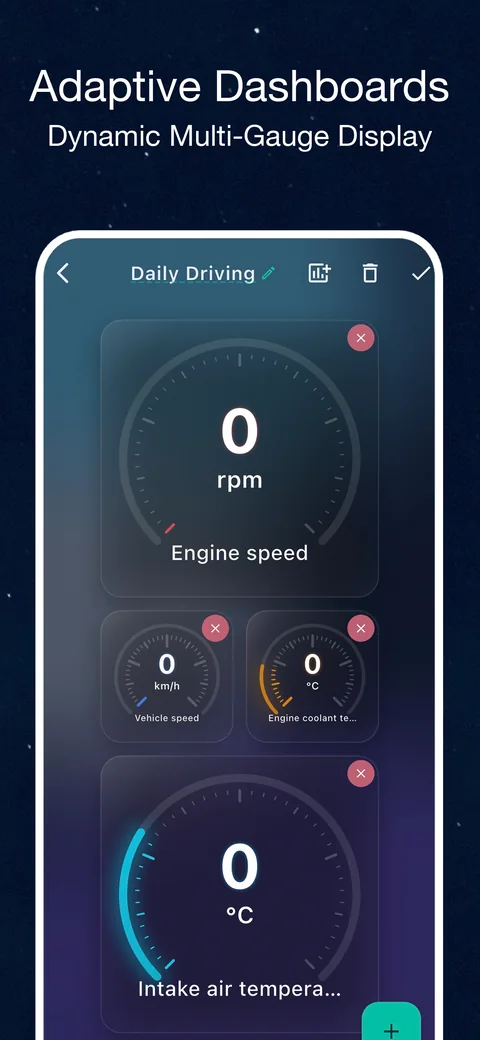
Diagnose supported systems, monitor live sensors and keep reports you can review after disconnecting.
Read standard engine and emissions codes, or scan supported modules with vehicle-specific UDS configurations. Copy a report and questions to your preferred third-party AI tool for interpretation.
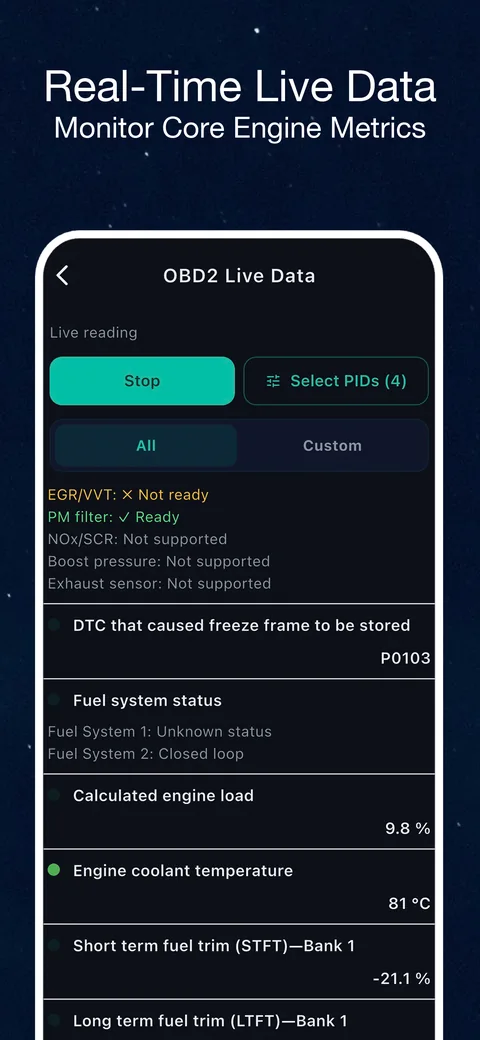
Check supported sensor values while connected, such as engine speed and coolant temperature. For saved charts and CSV exports, choose the separate sensor recording feature.
Record acceleration and elapsed time alongside supported vehicle readings. Results depend on vehicle data and sampling intervals.
View VIN and ECU information, emissions readiness and supported Mode 05/06 results. Clearing codes does not repair a fault and may reset readiness monitors.
Find every home-screen tool in its app category, plus the dashboard and saved reports. Each guide explains practical steps, examples and result limits.
Use OBD CAN vehicle reference configurations to scan supported UDS modules. Learn to select a vehicle, understand module status and confirm code clearing.
Read the guide →Read confirmed, pending and permanent engine and emissions trouble codes with OBD CAN. Learn how to connect, understand results and clear codes carefully.
Read the guide →Run one connected OBD2 scan for available engine codes, monitors, vehicle information and live PIDs. See what it covers and what it cannot confirm.
Read the guide →View supported OBD2 sensor values as your vehicle responds. Learn how live data works, what affects refresh speed, and when to use logging or a dashboard instead.
Read the guide →Record phone-microphone cabin sound alongside available OBD speed and RPM. Review noise summaries and comparisons without claiming to locate a fault.
Read the guide →Record an OBD2 acceleration run with speed, distance, elapsed time and supported RPM or throttle data. Review stages and charts with OBD CAN.
Read the guide →Record adapter-reported voltage before, during and after engine cranking. Review the voltage curve and saved report with OBD CAN.
Read the guide →View live OBD2 narrowband oxygen sensor voltage traces with cross counts and summary values. Learn the warm-engine steps and sensor support limits.
Read the guide →Record supported OBD2 sensor charts, compare operating conditions and export CSV. Learn which readings to select and how to avoid misleading comparisons.
Read the guide →Track vehicle-reported or supported estimated fuel use with OBD CAN, review distance and consumption reports, and export collected inputs to CSV.
Read the guide →Read vehicle information exposed through standard OBD2 Mode 9, including VIN and ECU calibration identifiers, with practical interpretation limits.
Read the guide →Read supported ECU-reported Mode 05 oxygen sensor test values, including voltage thresholds and response times, with OBD CAN.
Read the guide →Read ECU-reported OBD Mode 06 non-continuous monitor values with test and component IDs, returned limits and status when available.
Read the guide →Check supported OBD readiness monitors, MIL status and emissions trouble codes before an inspection. OBD CAN provides a precheck, not a pass guarantee.
Read the guide →Read supported OBD2 readiness data, distinguish since-clear status from the current drive cycle, and interpret distance and warm-up counters.
Read the guide →Find vehicle-specific readings beyond standard OBD2: choose OEM PID references, check compatibility, import Torque CSV and record selected parameters.
Read the guide →Set up an OBD2 dashboard before connecting, choose supported standard sensors, and understand when live readings become available.
Read the guide →Find, reopen, and manage diagnostic reports saved by OBD CAN tests, with clear limits on local storage, account access, and vehicle connections.
Read the guide →Connect with a compatible Bluetooth Low Energy (BLE) OBD2 / ELM327 adapter, sold separately. Classic Bluetooth and Wi-Fi adapters are not supported. Available sensors and modules depend on your vehicle and adapter.
Live readings and tests require sign-in and a vehicle connection. Offline features let you configure views and review saved reports; they do not read new vehicle data.
Plug the OBD diagnostic interface into the universal communication port under the vehicle steering wheel.
Sign in, select your BLE adapter and connect to the vehicle. Check adapter permissions if the device is not listed.
Read supported codes and sensors, or start a recording to review later.
Download OBD CAN for iOS or Android. Standard OBD2 code reading and clearing are free after sign-in; advanced features require paid membership. Check current plans in the app.